Friday, March 29, 2019

Fix Error 1009 on iPhone 2019


Solution 2: Check Apple System Status Page

When you are not able to download the apps, then it might also indicate that the servers at Apple's end might not be working. If the servers are not working at Apple's end, then it is obvious that none of the service provided by Apple will work. Hence, you need to check if Apple's systems are working fine or not. This can be checked by visiting the Apple System Status page. All you need to do is visit the https://www.apple.com/support/systemstatus/ website on any device and check the system status. If the App store is down for maintenance, you need to wait till the maintenance is over.


Solution 3: Fix iPhone Error 1009 by Proxy Settings

One more method to solve this issue is by checking your iPhone's proxy settings. You need to verify if your iPhone's proxy settings are set properly, or else you will require changing them. This can be done by following the below mentioned steps.

Step 1: Go to Settings >> Wi-Fi.

Step 2: Tap on the Wi-Fi that you are connected to. You will see HTTP Proxy settings on the bottom of the screen.

Step 3: Select Manual to manually adjust the settings.

Step 4: Now click on Server and enter the IP address, then click "Port" as your supplier shows it. This is will probably solve your error.


Solution 4: Check If Your IP Is Blocked

There are some apps that are not allowed in particular country. Hence, if you are trying to download an app that is banned in your country, then there are chances of you facing the issue. This will result in blocking of the IP. Hence, you need to check the country that you have set in the app. If the app is blocked in your country, you can always choose a different country. Here are the steps that you need to follow to get rid of error 1009.

Step 1: Go to Setting >> iTunes & App Store >> your Apple ID >> View Apple ID.

Step 2: Sign in using your Apple credentials.

Step 3: On the Account screen, click on Country/Region. Tap "Change Country or Region" and then choose the desired country. Click "Next." Check if the issue is solved or not.


Solution 5: Fix iPhone Error 1009 with VPN Service

Another way to solve this issue is by using VPN service. If the app is blocked in your country, you can change your IP address and download it. Here are the steps that need to be followed.

Step 1: Go to Settings >> General >> VPN.

Step 2: Click on "Add VPN Configuration."

Step 3: Enter the information in the boxes and check Off Proxy box.
Solution 6: Update iPhone Software

If there is issue while updating the app, then upgrading the iOS might assist you in such cases. Upgrading the operating system might offer a solution to this error and solve your issue. Here are the steps to update the iOS.

Step 1: Run the iTunes and also connect your iPhone to the PC. Make sure you have the latest version of iTunes installed on your PC.

Step 2: Now, select your device name in iTunes. Once you have selected the device, click on the Summary and then tap "Check for Updates."

Step 3: Tap "Download and Update" option and wait for the process to end.


Conclusion

Also Read:jihosoft Free iPhone Data Recovery

Sponsor ads:

Gihosoft Free iPhone Data Recovery:https://www.gihosoft.com/iphone-data-recovery-free.html

Gihosoft iPhone Data Recovery Free

Free iPhone Data Recovery Software for Windows/Mac

Recover up to 12+ types of files, including contacts, SMS, photos, WhatsApp, Viber, notes, etc.

Restore lost data from iOS devices directly or from iTunes and iCloud backup

Recover iPhone data lost due to iOS upgrade/jailbreak, accidental deletion, device lost or broken

Support all the latest iPhone, iPad and iPod Touch

Both Free and Pro version.

If you lost data after you updated to a new iPhone, you can always use Gihosoft iPhone Data Recovery to get the data back from the old iPhone or backup.You may also like: iphonerecovery.com

Also Read:Update Android

Also Read:Top 8 Best Alternative Websites to TamilGun in 2019

Also Read:Free Download FRP Bypass APK for Android 2019

Also Read:Best 10 Movie4k Alternative Websites for Movie Streaming 2019

Monday, March 25, 2019

AirPods Wireless Charging Case Shows an Image of AirPower on The Back


Apple has never given up entirely on AirPower, its wireless charging mat accessory. Even when times have been grim.

But it is certainly starting to feel like AirPower might actually be about ready to launch. And there has never been a clue as strong as this latest one. Reports have confirmed that on the packaging for the AirPods with Wireless Charging Case, there appears to be an image of the AirPower wireless charging mat itself. That’s right: AirPower is pictured on the packaging material itself.

If that’s an oversight, and not a direct reference to a real product that’s launching soon, that’s, well, pretty bad.

The back of the box does show the pill-shaped wireless charging mat, which is quite distinctive of AirPower. That picture is shown with a Lightning cable charging the mat itself, and then you can place the Wireless Charging Case for the AirPods directly on the mat to charge that accessory. It’s all pretty straightforward, but it’s obviously exciting for anyone who has been waiting for AirPower ever since it was first announced in late 2017.


As for the new AirPods and the Wireless Charging Case, that was announced last week. There were rumors that AirPower would arrive by the end of that week, but now the latest rumor suggests it will arrive in “late March“. That would be this week, for those keeping track, since Apple is not likely to launch a new product on the weekend.

So it looks like we can expect, or at least hope, that we’ll see AirPower launch this week sometime.
Our Take

Seriously, Apple, just launch AirPower already.
We Want To Hear From You

Depending on how much AirPower costs, do you plan on buying it?

[via MacRumors; @ChrisJCaine]
Also Read:jihosoft Free iPhone Data Recovery
Sponsor ads:
Gihosoft Free iPhone Data Recovery:https://www.gihosoft.com/iphone-data-recovery-free.html
Gihosoft iPhone Data Recovery Free

Free iPhone Data Recovery Software for Windows/Mac

Recover up to 12+ types of files, including contacts, SMS, photos, WhatsApp, Viber, notes, etc.

Restore lost data from iOS devices directly or from iTunes and iCloud backup

Recover iPhone data lost due to iOS upgrade/jailbreak, accidental deletion, device lost or broken

Support all the latest iPhone, iPad and iPod Touch

Both Free and Pro version.


If you lost data after you updated to a new iPhone, you can always use Gihosoft iPhone Data Recovery to get the data back from the old iPhone or backup.You may also like: iphonerecovery.com

2019 iPhones Might Feature Reverse Wireless Charging, Come with 18W USB-C Charger


A Macotakara report claims that the 2019 iPhones will feature reverse wireless charging and that Apple will finally bundle an 18W USB-C charger with them, though the phones themselves will continue to feature a Lightning connector.

The inclusion of reverse wireless charging would mean that the iPhone 11 can be used to charge the AirPods and Apple Watch wirelessly. We have already seen the likes of Huawei and Samsung include this feature in their flagship handsets. The feature is impractical for charging other smartphones but extremely useful for charging accessories like AirPods and Apple Watch.

As for the 18W USB-C charger, there were reports last year as well that Apple will include it with its 2018 iPhones but that did not happen. Reputed analyst Ming-Chi Kuo has claimed that Apple will continue to bundle 5W USB-A charger with 2019 iPhones as well.

An 18W USB-C charger will be able to fast charge the iPhones to 50 percent in just 30 minutes. Apple already bundles the USB-C charger along with a USB-C to Lightning cable with its 2018 iPad Pro lineup. Apple added fast charging support to its iPhone lineup with the 2017 iPhone X and iPhone 8. However, it has continued to bundle a 5W charger with them which takes nearly 3 hours to full charge the phones.
Our Take

At this point, I’d say it is better to take the rumours of 2019 iPhones coming with an 18W USB-C charger with a pinch of salt. A similar story played out last year so its better to be cautious of such rumours this time around.

[Via Macotakara]Also Read:4 Best iOS Cleaner Apps to Clear Junk on iPhone/iPad in 2019
Also Read:7 Best Free Parental Control Apps for Android to Keep Your Kids Safe
Also Read:Top 5 Best Torrent Websites – YIFY Alternative Sites 2019

Also Read:Top 8 Best Alternative Websites to TamilGun in 2019
Also Read:4 Easy Ways To Know if Your iPhone Is Locked Or Unlocked

Also Read:Download Korean Drama for Free 2019

Also Read:5 Best Free Internet Download Manager IDM Alternatives to Check Out

Monday, March 4, 2019

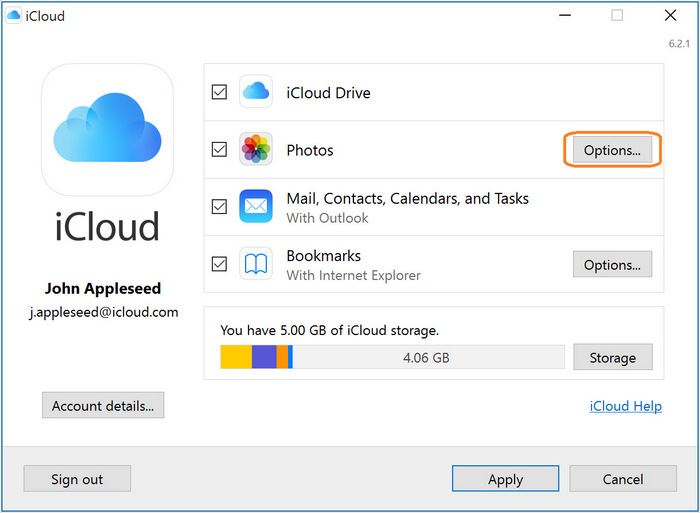
iPhone to PC Transfer with iCloud 2019


iPhone to PC Transfer with iCloud 2019


Download iCloud for Windows.


Proceed to open iCloud for Windows.


Search for Photos and click Options next to it.


Now select iCloud Photo Library in the available options.


Click Done to freeze your preferences and click Apply to proceed.


Backup with iCloud is convenient, but each one only has 5GB free storage to use. You'll have to pay for extra space. Also when your internet is not so stable, syncing is not always successful.


iMyFone TunesMate acts as a single shot solution for all your 'iPhone to PC transfer' problems. Weather photos, apps, videos, music or more, it lets you transfer every media file without fearing data deletion and losses. Further, it also rebuilds damaged and corrupted iTunes library, thereby giving you more hold and authority over your personal files. Unstable internet connectivity issues? Well, TunesMate passes this boundary too!

Also Read:jihosoft Free iPhone Data Recovery

Sponsor ads:

Gihosoft Free iPhone Data Recovery:https://www.gihosoft.com/iphone-data-recovery-free.html

Gihosoft iPhone Data Recovery Free

Free iPhone Data Recovery Software for Windows/Mac

Recover up to 12+ types of files, including contacts, SMS, photos, WhatsApp, Viber, notes, etc.

Restore lost data from iOS devices directly or from iTunes and iCloud backup

Recover iPhone data lost due to iOS upgrade/jailbreak, accidental deletion, device lost or broken

Support all the latest iPhone, iPad and iPod Touch

Both Free and Pro version.

If you lost data after you updated to a new iPhone, you can always use Gihosoft iPhone Data Recovery to get the data back from the old iPhone or backup.You may also like: iphonerecovery.com

If you use android phones, please choose Gihosoft Android Data Recovery.

With Gihosoft Android Data Recovery, no longer afraid of data loss!

Must read:Youtube video downloader for pc

Gihosoft RePicvid Free Photo Recovery Software provides a free photo recovery software for windows to help users recover the deleted or lost photo for free.

Jihosoft Android Data Recovery: the best Android Data Recovery software for Windows and Mac to recover deleted contacts, messages, photos, videos, WhatsApp and etc from Android devices.Tips:How to transfer messages from iPhone to iPhone

Fix Error 1009 on iPhone 2019

Solution 2: Check Apple System Status Page When you are not able to download the apps, then it might also indicate that the servers at Apple...